Connect Skilled Rabbit to Claude Code
Finney — your Skilled Rabbit copilot — can see your mission, checkpoints, and progress while you work in Claude Code, so every answer is grounded in where you actually are in the training. This page walks you through the one-time connection, from npx install to your first "Hi Finney" reply.

If anything breaks, the Troubleshooting section below covers the most common errors.
Using claude.ai instead? If you prefer the claude.ai web UI over Claude Code, see the claude.ai Custom Connector setup — no terminal, no npm, just paste a URL.
What this is
The @skilledrabbit/mcp CLI is a small Node package published on npm. It does two jobs:
- Logs you in once (your Skilled Rabbit account) and saves a token on your machine.
- Adds five entries to
~/.claude/settings.jsonso Claude Code automatically tells Skilled Rabbit when you start a session, submit a prompt, use a tool, or end a session.
Everything the shim sends is scoped to the training you've paid for. If you don't own access, the event silently drops — no error shown to you, no data collected by us. We only capture events for active, paid enrollments.
No code is sent from your project to Skilled Rabbit. The shim captures prompt previews (first 500 characters, with API keys and secrets stripped out before send) so Finney can understand what you're working on — not your whole codebase.
Requires Node 18 or newer. Check with node --version. If you're on an older version, install the latest LTS from nodejs.org.
Install
Three steps. Under two minutes total.
1. Run install
Open your terminal and run:
npx -y @skilledrabbit/mcp install
You'll see output like this:
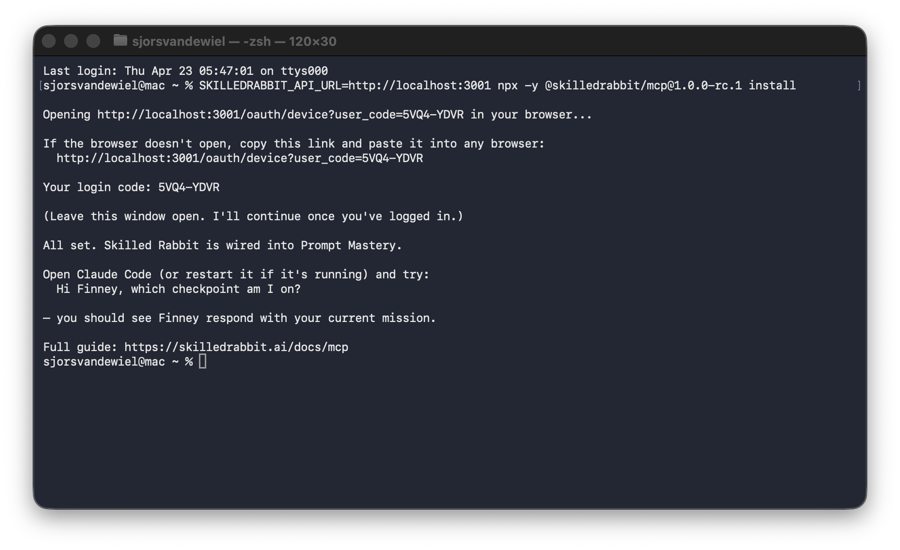
2. Log in
A browser window opens (or you can copy the link from your terminal) and shows the Skilled Rabbit consent page with a login code:
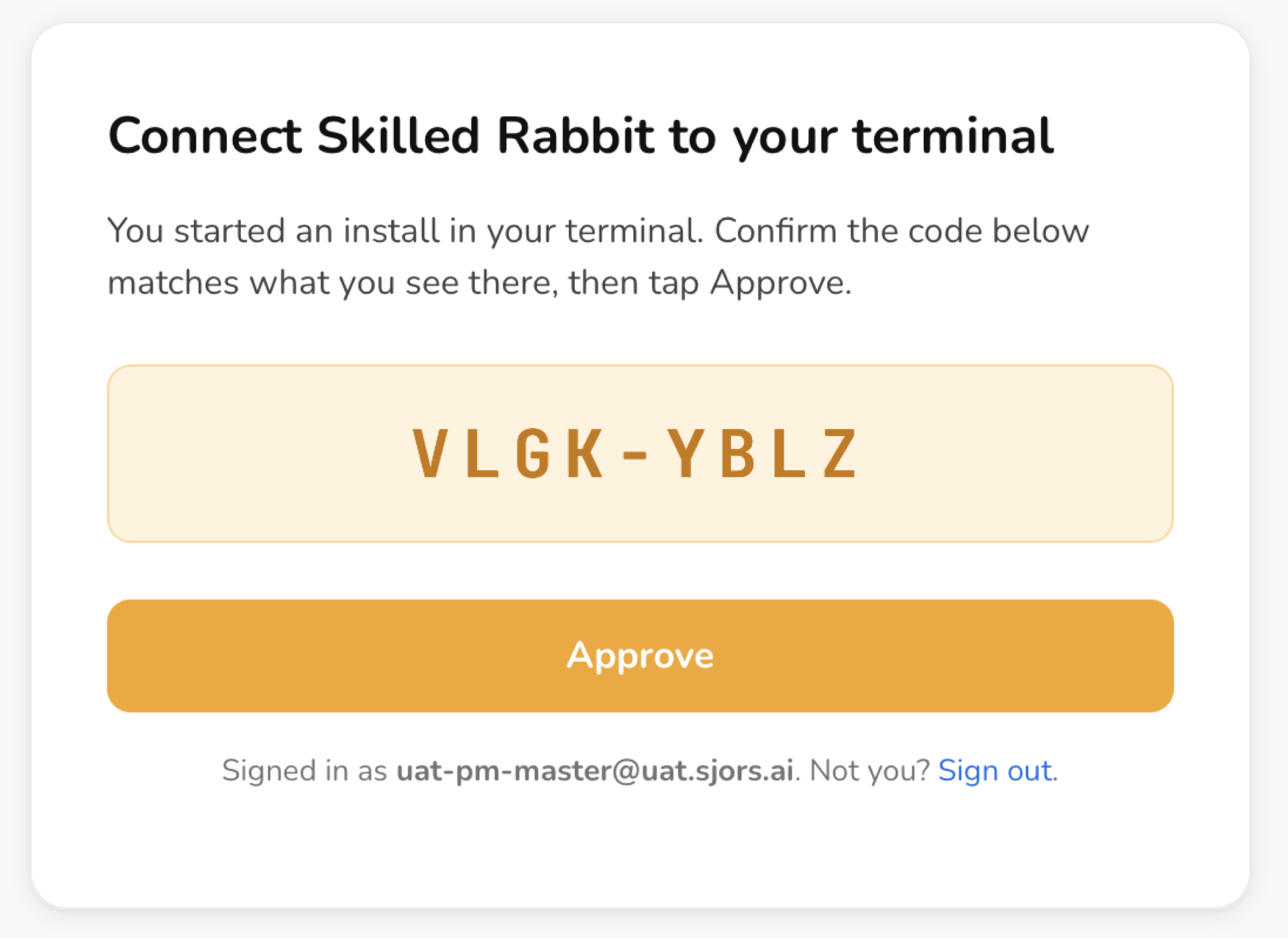
Paste the login code from your terminal, click Confirm. That's it. Your terminal picks up automatically and wires ~/.claude/settings.json:
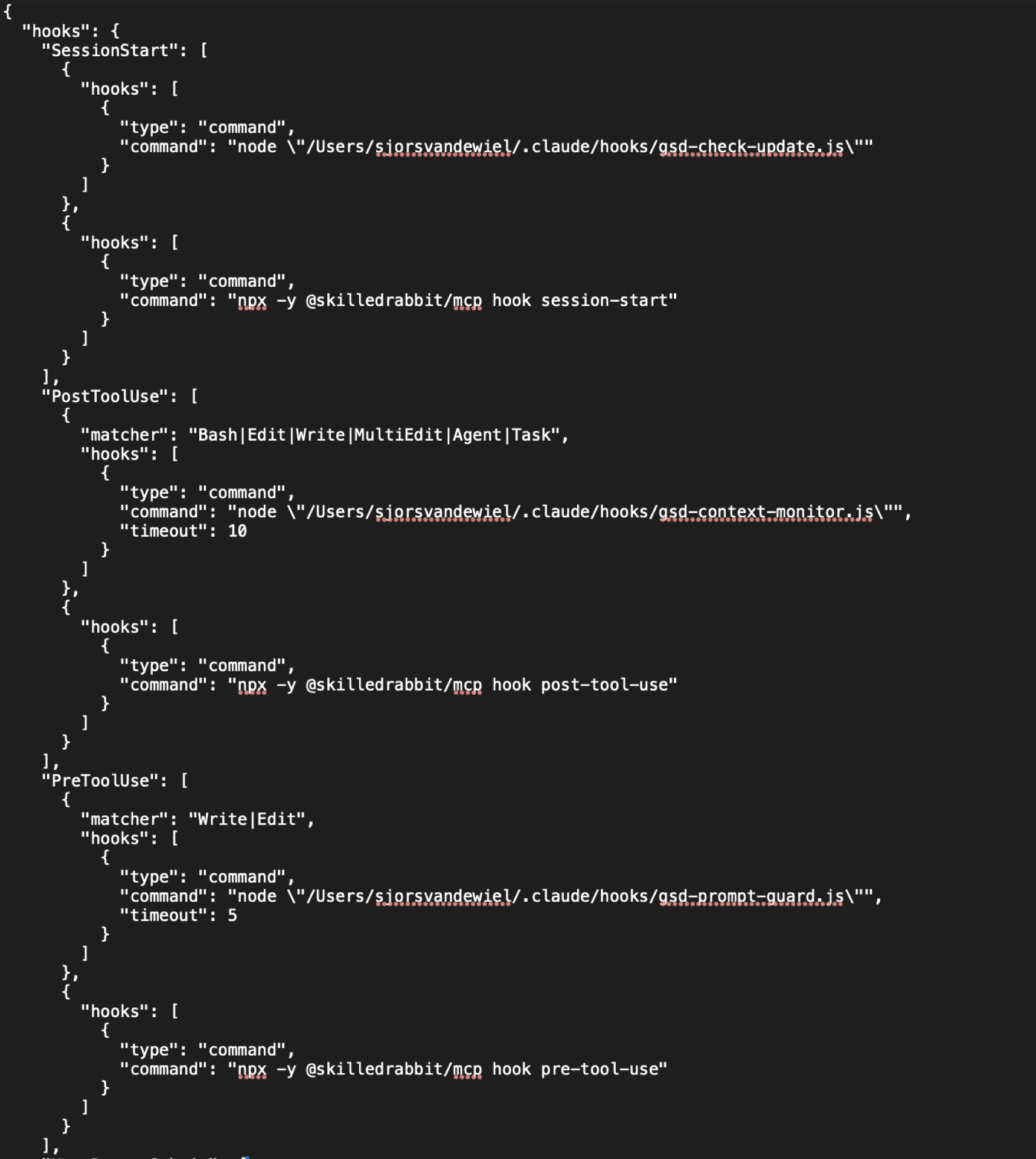
Your previous settings.json is automatically backed up to ~/.claude/settings.json.bak.<timestamp> before any change — nothing is overwritten without a recoverable copy.
3. Verify
Open Claude Code (or restart it if it's already running) and try:
Hi Finney, which checkpoint am I on?
You should see Finney respond with your current mission, like this:
If Finney responds with your real current mission, the connection is live. You're done.
If you bought Cowork Combo
Cowork Combo gives you access to all 11 Cowork persona trainings (Consultant, Education, Executive, Finance, Freelancer, HR, Legal, Marketing, PM, Sales, plus the base Cowork wrapper). When you run install, the enrollment picker lists every persona training individually:

Pick the ONE you're actively working on right now. Finney connects to that training's context — missions, checkpoints, and progress. If you want to switch contexts later (say, from Consultant to HR), run:
npx -y @skilledrabbit/mcp switch-training
The same picker appears; pick a different training; Finney's context updates on the next Claude Code session.
There's no cost to switching — you already own all 11. The picker is just the shim asking "which one should I focus on right now?"
Troubleshooting
"No login found"
What it means: You haven't run install on this machine yet, or your ~/.skilledrabbit/auth.json was deleted (perhaps by a machine reset or a manual cleanup).
Fix:
npx -y @skilledrabbit/mcp install
"Login expired"
What it means: Your refresh token expired — this happens after about 30 days of inactivity.
Fix: Run install again. The flow is quick because you're already logged in on skilledrabbit.ai; the browser consent is one click.
"No enrollments on this account"
What it means: Your Skilled Rabbit account is valid, but you don't have any active training enrollments.
Fix:
- Log in at skilledrabbit.ai.
- Pick a training — Think › Build › Ship, Cowork Consultant, or Prompt Mastery.
- Enroll (free tier or paid).
- Re-run
npx @skilledrabbit/mcp install.
"Couldn't reach skilledrabbit.ai"
What it means: Your machine couldn't reach our servers. Corporate firewall, VPN, or temporary outage.
Fix: Check curl -s https://skilledrabbit.ai/api/mcp/version. If that fails, the issue is network-level — check your VPN, firewall, or try on a different network.
"This CLI is out of date"
What it means: The shim version installed on your machine is below the minimum we currently accept. We bump this only when the wire schema has a breaking change; older shims can't send data in a shape we can parse.
Fix:
npx -y @skilledrabbit/mcp@latest install
The @latest tag forces npx to re-download the newest version instead of using its cache.
"Install didn't complete. No changes made."
What it means: Something failed mid-install (network timeout, permission error, your account logout). We don't commit halfway — so nothing on your machine is half-wired.
Fix: Run install again. If it keeps failing, run with --debug and paste the log in a support email.
"Login cancelled"
What it means: You clicked Cancel on the browser consent page, or closed the browser.
Fix: Run install again and complete the browser flow.
Finney isn't responding in Claude Code
What it means: Install completed, but Claude Code's settings.json may not have reloaded yet.
Fix:
- Close Claude Code completely.
- Reopen it.
- Try again: "Hi Finney, which checkpoint am I on?"
If Finney still doesn't respond, run with --debug and check ~/.skilledrabbit/install.log for any errors during the last install.
Debug mode
If you're stuck, re-run install with the --debug flag:
npx -y @skilledrabbit/mcp install --debug
A redacted timeline is written to ~/.skilledrabbit/install.log. Credentials (access tokens, login codes) are stripped automatically before anything is written. Paste the contents of that file into a support issue and we can triage quickly.
Uninstall
Clean disconnect:
npx -y @skilledrabbit/mcp uninstall
The shim:
- Prompts you to confirm (
--yesskips the prompt for scripting). - Backs up your current
~/.claude/settings.jsonto~/.claude/settings.json.bak.<timestamp>. - Removes the 5 hook entries we added. Any other settings.json content — other MCP servers, other hooks, your own
permissionsorexperimentalblocks — is preserved verbatim. - Deletes
~/.skilledrabbit/auth.json(your cached token).
If you want to review what was removed, the backup file stays in ~/.claude/ until you delete it. There's no cleanup pressure — the backup costs kilobytes.
To reconnect later: npx -y @skilledrabbit/mcp install.
FAQ
Does this send my code to Skilled Rabbit?
No. The shim captures prompt previews — the first 500 characters of what you type into Claude Code — with API keys, secrets, and credentials stripped before send. Your actual code files are never read or sent. We use prompts to help Finney understand the context of your current mission, not to ingest your project.
Can I use this with Cursor or another MCP client?
Not officially at v5.4. The shim is tested and supported on Claude Code and Claude Cowork. Other MCP clients may work, but we don't support them and won't debug issues against them.
What happens if I lose internet mid-session?
Hook events silently drop when the network is unavailable. Finney's in-session responses continue to work through Claude Code's normal request path; only the passive telemetry pauses. When connectivity returns, new events flow again.
Can I turn off the install telemetry?
Yes. Set SKILLEDRABBIT_TELEMETRY=0 in your environment before running install. The shim skips the telemetry POST silently — install still completes normally.
Do I need to reinstall for every project?
No. The shim is a one-time, user-level install. Once wired to ~/.claude/settings.json, every Claude Code session on that machine inherits the connection. Multiple projects, same setup.
Support
- Found a bug or have feedback? Open an issue: github.com/sjorsvandewiel-pixel/gsd-training/issues
- Stuck on an install error? Re-run with
--debugand include the contents of~/.skilledrabbit/install.login your issue. - Account questions (enrollments, billing)? Email support@skilledrabbit.ai or reply to any Skilled Rabbit welcome email.
Full source: github.com/sjorsvandewiel-pixel/gsd-training/tree/main/packages/mcp-shim.